Remove blemishes and acne from photos naturally
VidEraser removes pimples, acne spots and minor portrait blemishes from JPEG and PNG photos with a precision AI brush while keeping natural skin texture and full resolution.
| What's on screen | How to remove it | Good to know |
|---|---|---|
| Individual pimples & spots | Small Manual photo erase dabs match surrounding skin texture cleanly. | Saving the finished photo uses 1 image credit. |
| Multiple small blemishes | Tap all spots in one pass before processing. | Avoid painting huge patches so skin tone stays even. |
| Clothing lint and dust | Cleans dark suits and dresses without blurring fabric weave. | Processes one portrait image per session. |
| Original portrait resolution | Ready for LinkedIn, resumes or printing at full pixel size. | JPEG exports are re-saved as JPEG. |
Works for
- Headshots, selfies and event portraits with temporary spots.
- Clearing lint, dust specks or tiny flaws on clothing.
- JPEG or PNG portraits at least 64 pixels on the short side.
Not for
- Full-video beauty smoothing or face reshaping.
- Batch retouching dozens of event portraits at once.
A sudden breakout, minor scratch or stray skin spot should not ruin a great headshot, graduation portrait or wedding photo. Dab over blemishes with VidEraser's Manual photo erase brush to blend them naturally into surrounding skin tone without plastic-looking airbrush filters.
Use only content you own or are authorized to process. Do not upload other people’s copyrighted material.
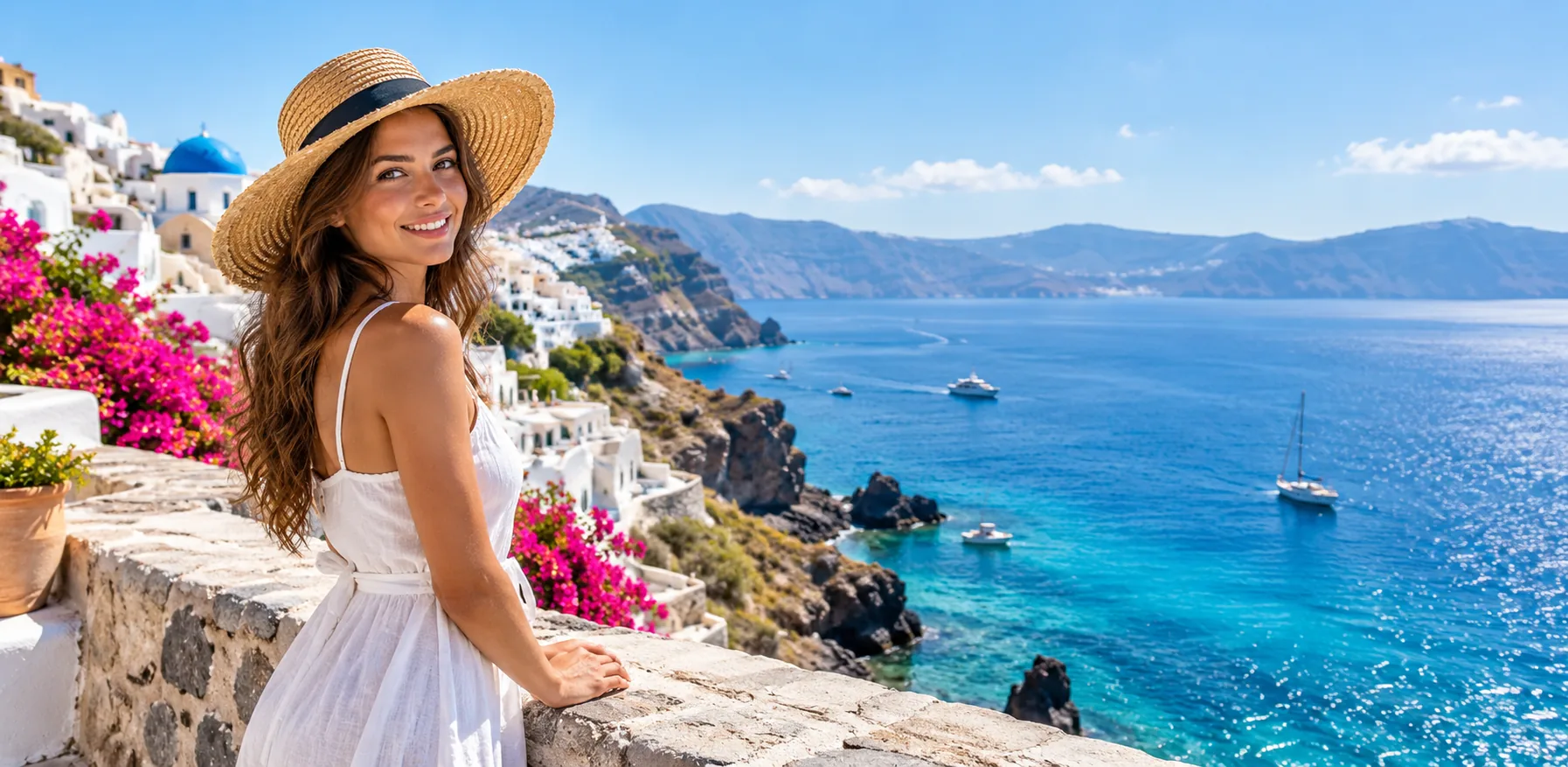
Drag to compare
The comparison uses VidEraser’s own demo assets, not any platform’s official interface.
 Before
After
Remove it in three steps
- 1
Upload
Choose one photo. Photos are one at a time.
- 2
Choose how to erase
Zoom in on the portrait and gently dab each blemish, spot or stray lint using a small Manual photo erase brush.
- 3
Preview and export
Check the preview first: videos up to 2 minutes can be previewed for free, and the preview can't be saved. When you're happy, use credits to export at the original resolution. Web and app share credits.
Tips for natural portrait retouching
- 1
Keep brush dabs small and targeted instead of painting across large cheek areas.
- 2
Zoom in on mobile or desktop so you stay clear of eyes, lips and eyebrows.
- 3
Compare the preview at normal viewing distance to make sure lighting looks natural.
Frequently asked questions
Will removing blemishes make skin look overly smooth or plastic?
No. Dabbing only the spot itself lets AI match surrounding pores and lighting so the rest of the face stays completely natural.
Can I remove several spots in one pass?
Yes. Tap each pimple, redness spot or speck of lint on clothing in one Manual photo erase pass before running.
What brush size works best for portrait retouching?
Use a small brush just slightly wider than each blemish so neighboring skin detail stays untouched.
Does retouching reduce my headshot resolution?
No. Your retouched JPEG or PNG downloads at the exact original pixel dimensions.
Can I preview the retouched face before spending a credit?
Yes. Inspect the full preview first; a credit is only used when you choose to save the finished image.
Can it also remove stray lint or dust on dark jackets?
Yes. The same precision brush clears lint, dandruff specks and small fabric flaws effortlessly.