Remove text from a photo
For text on a photo, start with Auto photo erase. If anything is left, or you only want to remove part of it, paint over it with Manual Eraser.
| What's on screen | How to remove it | Good to know |
|---|---|---|
| Text on a screenshot or product photo | Start with Auto photo erase. | If anything is left, switch to Manual Eraser. |
| Only some of the words | Paint over just those words with Manual Eraser. | You'll be asked to use 1 image credit when it finishes. |
| Text on a busy background | Use Manual Eraser and paint close to the letters. | Check the preview before you export. |
| Prices or contact details on an image | Auto photo erase or Manual Eraser both work. | One image at a time. |
Works for
- Text on product photos, posters or screenshots.
- JPEG or PNG, at least 64 pixels on the short side.
- Images you're allowed to edit.
Not for
- Several images at once.
- Someone else's images.
For unwanted text on a product photo, screenshot or your own picture, start with Auto photo erase. If anything is left, paint over it with Manual Eraser. One JPEG or PNG at a time.
Use only content you own or are authorized to process. Do not upload other people’s copyrighted material.
Drag to compare
The comparison uses VidEraser’s own demo assets, not any platform’s official interface.
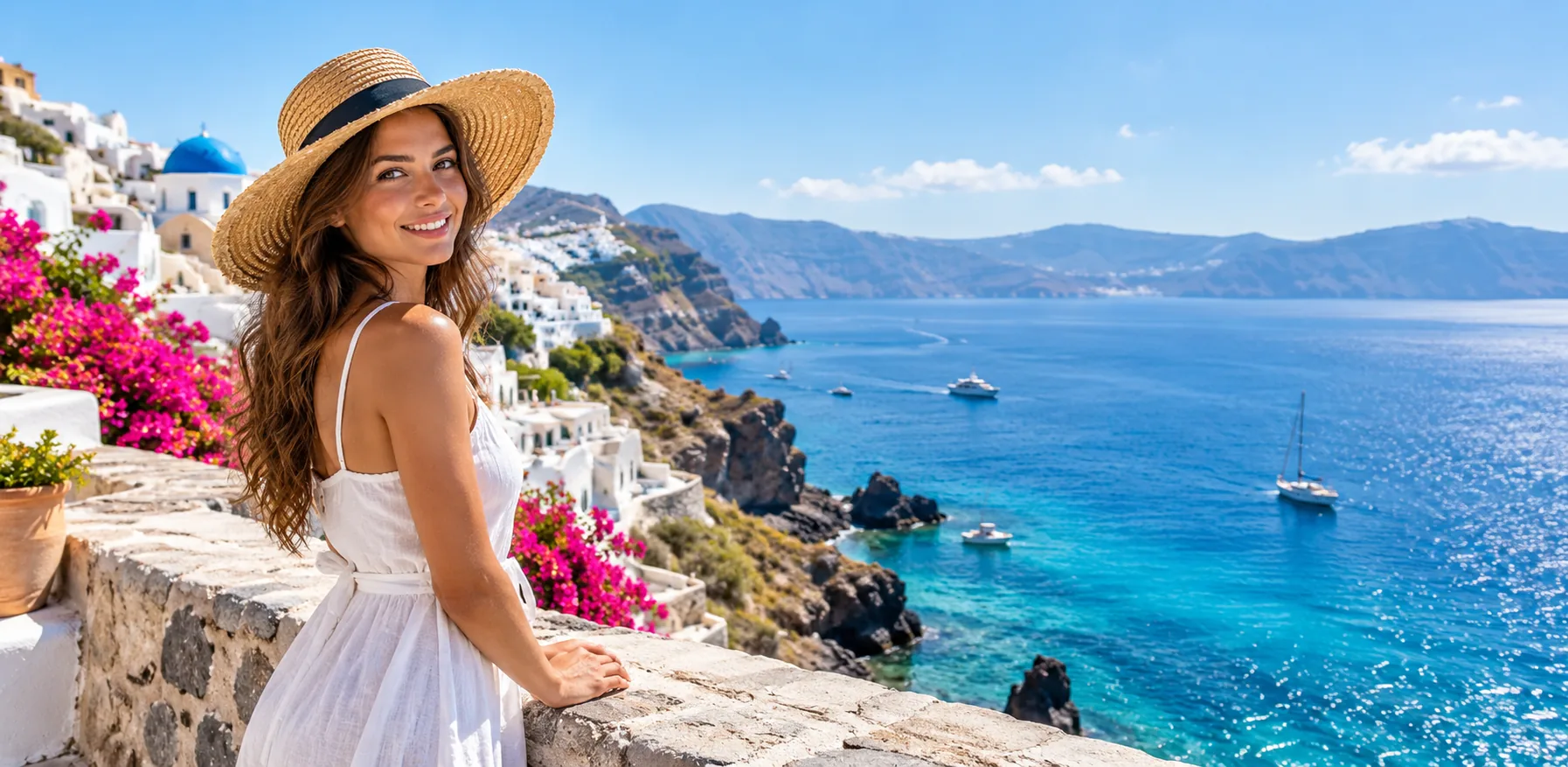
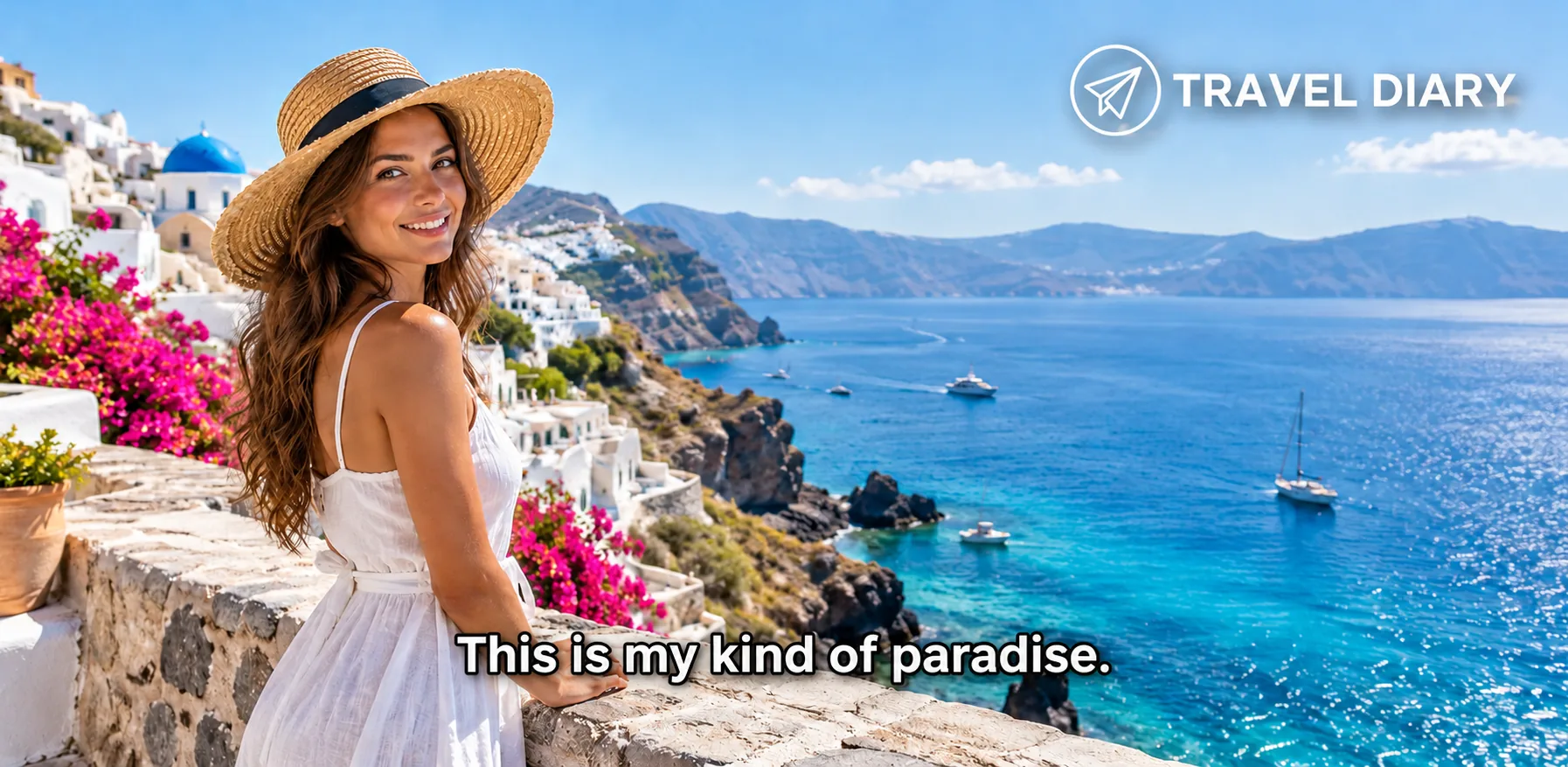 Before
After
Remove it in three steps
- 1
Sign in and upload
Sign in with Google, Apple, or email, then choose one image. Images are one at a time.
- 2
Choose how to erase
Choose Auto photo erase first. If text is left, or you only want to remove part of it, use Manual Eraser and paint over just those words. At least 64 pixels on the short side.
- 3
Preview and export
Check the preview first: videos up to 2 minutes can be previewed for free, and the preview can't be saved. When you're happy, use credits to export at the original resolution. Web and app share credits.
Before you remove text
- 1
To remove only some of the text, paint over just those words with Manual Eraser.
- 2
If you still have the original image without text, use that.
- 3
When text sits on a busy background, check the preview first.
Frequently asked questions
Can I pick several photos at once?
No. Photos are one at a time.
Which formats work?
JPEG and PNG. Save other formats as one of those first.
Can I remove subtitles from a video?
Yes. Upload the video file and cover the subtitles with Region Erase.
Can I paste an image link?
No. Choose the file from your device.
When does the upload start?
After you pick a photo, you preview it and choose how to erase on your device. It only uploads when you tap confirm.
Do I need to sign in?
Yes. Sign in with Google, Apple or email first.